Unknown's avatar

Posts by Alex Siminiuc

me

Start the Chrome Browser with Extensions

You may need sometimes to run test automation scripts in the Chrome browser using Chrome extensions.

By default, when any browser is started by Selenium, no extensions are added to it.

Also, all browser options are the default ones.

There are 2 ways of starting Chrome with extensions.


1. Use a Custom Chrome Profile

The following steps can be used for starting Chrome with a custom profile:

  1. Create a folder for the new custom browser profile (example: C:\Selenium\BrowserProfile)
  2. In the Chrome bar, run the following command: chrome://version/
  3. Copy the Chrome executable folder path value


chrome version

4. Open Command Prompt

5. Go to the Chrome executable folder path using the following 2 commands:

cd /

cd C:\Program Files (x86)\Google\Chrome\Application

5. Execute the following command:

chrome -user-data-dir=C:\\Selenium\\BrowserProfile

6. The Chrome browser is opened and a new profile is created in the C:\Selenium\BrowserProfile folder.

7. Add a new extension to Chrome by going to

Settings–> Extensions –> Get More Extensions

8. Close the browser

9. Add the needed settings to the Selenium code:


public class TestClass {

WebDriver driver;


@Before
public void setUp() {

System.setProperty(“webdriver.chrome.driver”, “C:\\Selenium\\BrowserDrivers\\chromedriver.exe”);

ChromeOptions options = new ChromeOptions();

options.addArguments(“user-data-dir=C:\\Selenium\\BrowserProfile”);

options.addArguments(“–start-maximized”);

driver = new ChromeDriver(options);

}

 
@After
public void tearDown() {

driver.quit();

}


@Test
public void testScript() {

Thread.sleep(10000);

}
}


10. Run the code; the Chrome browser is opened and the new extension is added to it

These steps are also useful if other custom settings have to be set for the browser.


chrome extension


2. Load a Chrome Extension

The following steps can be used for loading Chrome with an extension:

  1. Run the following url in Chrome: chrome://extensions/
  2. Enable the developer mode
  3. Copy the id of the extension

developer mode


4. Run the following url in Chrome: chrome://version/

5. Copy the Chrome profile path

chrome profile path

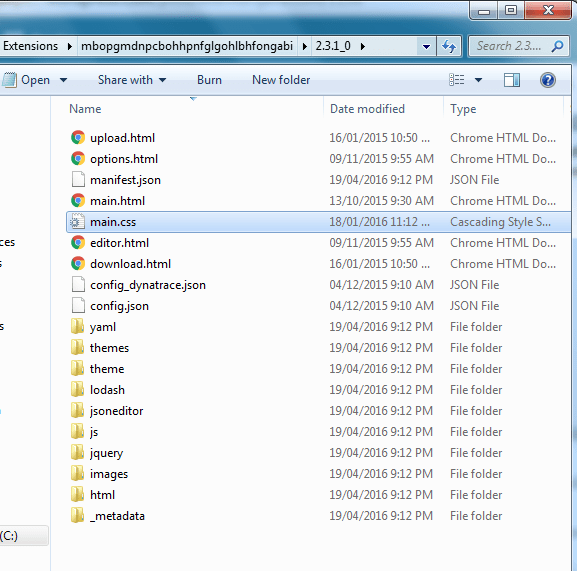
6. Open the Chrome profile path in Windows Explorer

7. Open the Extensions folder

8. Open the folder that has the name equal to the extension id from step 3

9. If there is a version subfolder in the extension folder, open it

10. Copy the folder path

extension folder

11. Add the needed settings to the code:

public class TestClass {

WebDriver driver;


@Before
public void setUp() {

String pathToExtension = “C:\\Users\\home\\AppData\\Local\\Google\\Chrome\\User Data\\Default\\Extensions\\mbopgmdnpcbohhpnfglgohlbhfongabi\\2.3.1_0”;

ChromeOptions options = new ChromeOptions();

options.addArguments(“–load-extension=” + pathToExtension);

driver = new ChromeDriver(options);

}


@After
public void tearDown() {

driver.quit();

}


@Test
public void testScript() {

Thread.sleep(10000);

}
}

12. Run the code; the Chrome browser is opened and the new extension is added to it


chrome extension


How to Take Screenshots if The Selenium Script Fails

Taking a screenshot when your Selenium WebDriver script fails is a very useful technique.

It shows you the page where failure has happened.

The best way of taking the screenshot is through JUNIT rules.


bugs bunny upset


Incorrect Way of Taking a Screenshot

A short example will be used for our “take screenshot” discussion.

The example automates a very simple test case that

  1. opens the http://www.vpl.ca site
  2. executes a keyword search
  3. verifies that the number of results is greater than 0


The example uses the following classes:

  • TEST CLASS
    • the test class extends a test base class
    • it has 1 test script only
    • the test script uses page objects and assertions


  • TEST BASE CLASS
    • it is used for setting up and cleaning the test environment


  • HOME PAGE CLASS
    • it implements the user actions related to the home page (open page, search)


  • RESULTS PAGE CLASS
    • it implements the user actions related to results page (get results count)


  • SCREENSHOT CLASS
    • it takes a screenshot of the current page


TEST CLASS

public class HomePageTests extends TestBase{

String keyword = “java”;


@Test
public void searchReturnsResults() throws Exception {

HomePage homePage = new HomePage();

homePage.openIn(browser);

ResultsPage resultsPage = homePage.search(keyword);

assertTrue(resultsPage.getResultCount() > 0);

}

}


TEST BASE CLASS

public class TestBase {

public static WebDriver browser;


@BeforeClass
public static void setUp() {
browser = new Driver().get();
}


@AfterClass
public static void tearDown() {
browser.quit();

}

}


HOME PAGE CLASS

public class HomePage {

By searchTextBoxId = By.id(“globalQuery”);
By searchButtonLocator = By.xpath(“//input[@class=’search_button1′]”);

String url = “http://www.vpl.ca”;

WebDriver browserDriver;


public void openIn(WebDriver driver) throws Exception
{
try
{
browserDriver = driver;
browserDriver.get(url);
}
catch (Exception ex)
{
new Screenshot(browserDriver).capture(“HomePage class – openIn method”);

throw new Exception(“site cannot be loaded”);
}

}


public ResultsPage search(String keyword) throws Exception {

try
{
WebElement searchTextBox = browserDriver.findElement(searchTextBoxId);
searchTextBox.sendKeys(keyword);

WebElement searchButton = browserDriver.findElement(searchButtonLocator);
searchButton.click();

return new ResultsPage(browserDriver);
}
catch (Exception ex)
{
new Screenshot(browserDriver).capture(“HomePage class – search method”);

throw new Exception(“search method failed”);
}

}

}


RESULTS PAGE CLASS

public class ResultsPage {

By itemCountLocator = By.xpath(“//span[@class=’items_showing_count’]”);

WebDriver browserDriver;


public ResultsPage(WebDriver driver)
{
browserDriver = driver;
}


public int getResultCount() throws Exception {

int count = 0;

try
{

WebElement resultsCount = browserDriver.findElement(itemCountLocator);

String value = resultsCount.getText();

int index1 = value.indexOf(“of”) + 3;
int index2 = value.indexOf(“items”) – 1;

count = Integer.parseInt(value.substring(index1, index2));
}
catch (Exception ex)
{
new Screenshot(browserDriver).capture(“ResultsPage class – getResultCount method”);

throw new Exception(“result count cannot be determined”);
}

return count;

}
}

SCREENSHOT CLASS

public class Screenshot {

WebDriver driver;


public Screenshot(WebDriver driver)
{
this.driver = driver;
}


public void capture(String name) {

try {

new File(“src/screenshots”).mkdirs(); 
FileOutputStream out = new FileOutputStream
(“src/screenshots/” + name + “.png”);
out.write(((TakesScreenshot) driver).getScreenshotAs(OutputType.BYTES));

out.close();

}
catch (Exception e) {
}

}

}


The Screenshot class is responsible for taking a screenshot of the current page of the site and storing it in the /src/screenshots folder.

Each of the page object classes (HomePage, ResultsPage) uses a try/catch block for catching exceptions in each of their methods.

If an exception is caught, a screenshot of the current site page is generated in the catch() block.


This approach works well but it leads to a lot of duplicated code that needs to be maintained.

Each method will need to have code for taking the screenshot in the catch() block.

The more classes you have, the more of the duplicated code.

JUNIT rules offer a great way of simplifying the process of taking a screenshot in case of failures.


bugs-bunny

Use JUNIT Rules for Automatic Screenshot Taking


JUNIT  Rules allow very flexible addition or redefinition of the behavior of each test method in a test class.

Testers can reuse or extend one of the default Rules or write their own.

The rules are useful in situations when you want to build your own test automation report, when you want to take automatic screenshots, etc.

Read more about JUNIT rules here.

A very good tutorial on JUNIT rules can be found here.


How will JUNIT rules help with our code?


First,

We create a custom JUNIT rule that takes a screenshot automatically every time an exception is generated in the project:


public class ScreenshotTestRule implements TestRule {

WebDriver driver;


public ScreenshotTestRule (WebDriver driver)
{
this.driver = driver;
}

 
public Statement apply(final Statement statement, final Description description) {

return new Statement() {

@Override
public void evaluate() throws Throwable {
try {
statement.evaluate();
}

catch (Throwable t) {
new Screenshot(driver).capture(getName(description.getClassName(), description.getMethodName()));

throw t;
}
}


private String getName(String className, String methodName) {
return className.substring(className.lastIndexOf(“.”) + 1) + “_” + methodName;
}
};
}
}


Second,

We add the JUNIT rule to the test base class:


public class TestBase {

public static WebDriver browser;


@Rule
public ScreenshotTestRule screenshotTestRule = new ScreenshotTestRule(browser);


@BeforeClass
public static void setUp() {
browser = new Driver().get();
}


@AfterClass
public static void tearDown() {
browser.quit();

}

}


Third,

We remove the “screenshot” code from the page object classes:

public class HomePage {

By searchTextBoxId = By.id(“globalQuery”);
By searchButtonLocator = By.xpath(“//input[@class=’search_button1′]”);

String url = “http://www.vpl.ca”;

WebDriver browserDriver;


public void openIn(WebDriver driver) throws Exception
{
try
{
browserDriver = driver;
browserDriver.get(url);
}
catch (Exception ex)
{
throw new Exception(“site cannot be loaded”);
}

}


public ResultsPage search(String keyword) throws Exception {

try
{
WebElement searchTextBox = browserDriver.findElement(searchTextBoxId);
searchTextBox.sendKeys(keyword);

WebElement searchButton = browserDriver.findElement(searchButtonLocator);
searchButton.click();

return new ResultsPage(browserDriver);
}
catch (Exception ex)
{
throw new Exception(“search method failed”);
}

}

}


How does this work?

Every time an exception happens, the JUNIT custom rule is triggered.

The JUNIT rule generates a screenshot of the current page (the one where the exception occurs).

The screenshot is then saved in the /src/screenshot folder.


I hope that this article makes it clear how to take screenshots in your automation projects.

If you liked it, please share it with your friends.


bugs-bunny-thats-all-folks


Run Test Automation Scripts in Command Prompt With MAVEN

While developing the Selenium WebDriver test automation scripts, the scripts are executed within Eclipse.

But as soon as the scripts work as expected, you may want to make the scripts available to other team members.

Like other manual testers.

Or developers.

You may also want to run the test scripts automatically as scheduled jobs.

Or use them in a continuous integration process.

All these require the ability of running the test scripts in the Command Prompt.

Let`s see how you can do this.

We will use an example project that automates the following test case:

  1. opens the home page of the Vancouver Public Library site
  2. checks if the home page title is correct

The project uses 2 classes: test class and home page class.

TEST CLASS

import static org.junit.Assert.*;

import org.junit.After;
import org.junit.Before;
import org.junit.Test;
import org.openqa.selenium.WebDriver;
import org.openqa.selenium.firefox.FirefoxDriver;

public class TestClass {

  WebDriver driver;

  @Before
  public void setUp() {
    driver = new FirefoxDriver();
  }

  @After
  public void tearDown() {
    driver.quit();
  }

  @Test
  public void testScript() {
    HomePage homePage = new HomePage(driver);
    homePage.open();
    assertTrue(homePage.isTitleCorrect());
  }

}

HOMEPAGE class

import org.openqa.selenium.WebDriver;
public class HomePage {
  WebDriver driver;
  String url = "http://www.vpl.ca";
  String title = "Vancouver Public Library - Home";

  public HomePage(WebDriver driver) {
    this.driver = driver;
  }

  public void open()  {
    driver.get(url);
  }

  public Boolean isTitleCorrect() {
    return driver.getTitle().equals(title);
  }

}

The following phases are needed for running this code from command prompt.

Everything that follows assumes that Maven is installed on your computer.

If you dont have it installed, use this link for instructions.

If you want to learn more about Maven, this is a very good tutorial.

  1. Create the Maven Project

This can be done manually without Eclipse.

Or you can use Eclipse for generating the project:

  • Open Eclipse
  • Click File, New, Project
  • In the New Project window, expand the Maven category
  • Select Maven project and click Next

1. select maven project

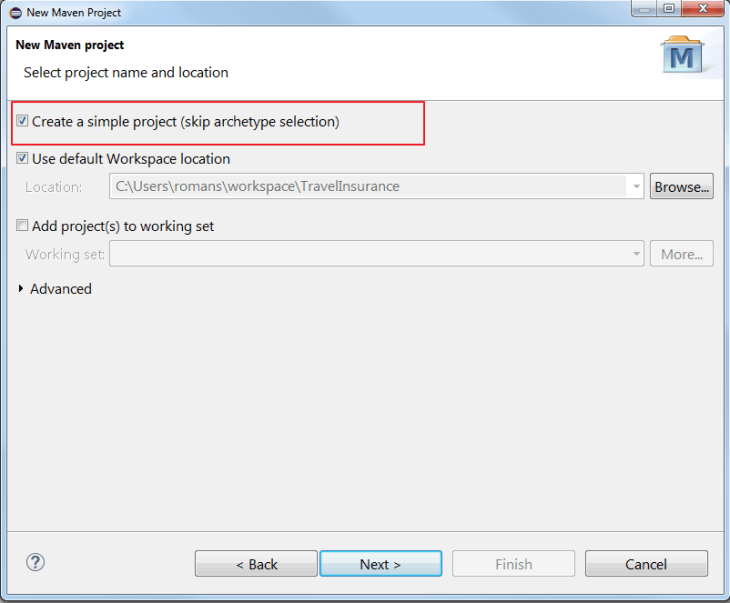
  • Check the Create A Simple Project checkbox
  • Click Next

2. maven - create a simple project

  • Configure the Maven project by providing the Group ID, Artifact ID and Name

3. configure maven project

  • Click Finish

The project is created and it shows in the Navigator panel of Eclipse.

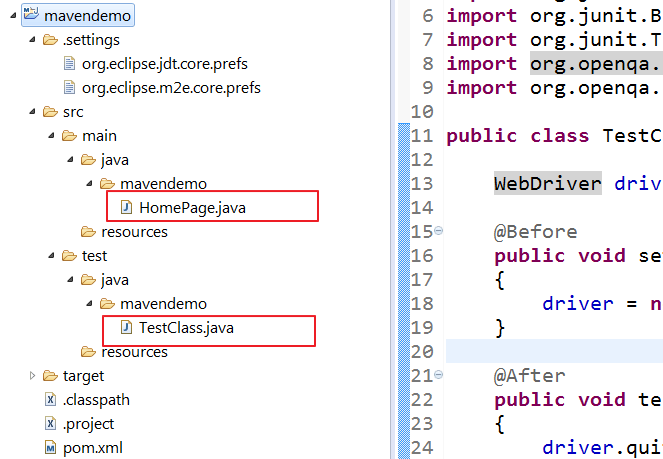
You can see the project structure by expanding the project node:

4. maven project structure

The project folder includes

  • SRC folder; includes source code for the test and page object classes.
  • TARGET folder; includes the resources generated by compiling the source code.
  • POM.XML file; it defines the project dependencies

Under the SRC folder, you will find 2 folders:

  • main; the page objects go here
  • test; the test classes go here

When the project is created, the POM.XML file has just a few lines:

5. initial pom file

The project does not have any dependencies added yet.

6. no maven dependencies

2. Add dependencies to the POM.XML file

2 dependencies are needed for our project:

  1. JUNIT
  2. SELENIUM

They are added to POM.XML by editing the file:

8. add junit and selenium dependencies to pom file

The project has now 2 dependencies added to it:

9. junit and selenium are added as dependencies

3. Add the test and page object classes to the project folders

Next, we need to add the test class to the SRC – TEST – JAVA folder.

The page object class is added to the SRC – MAIN – JAVA folder.

10. add class files

4. Execute the Maven Project in Eclipse

The Maven project can be executed by

  • right clicking on the project name
  • clicking Run As
  • clicking Maven Test

11. run maven test

The test script is being executed and the results are displayed in the Console panel.

12. build success from eclipse

After the project execution, you can see the .class files in the TARGET folder of the project:

13. class files are created

5. Run the Maven Project in Command Prompt

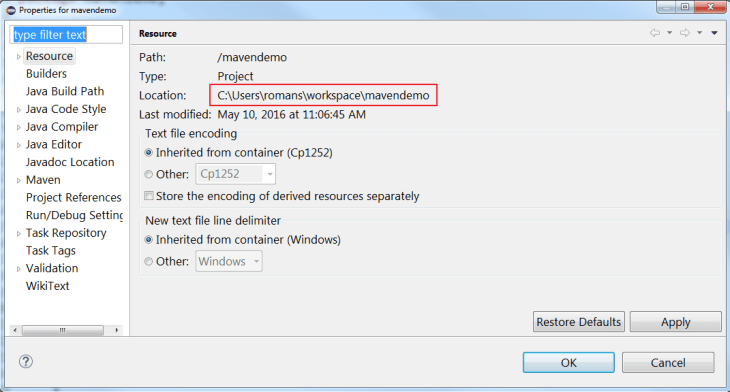
First, we need to get the project folder path.

This can be done by

  • right clicking on the project name
  • clicking Properties
  • getting the value of the Location field

14. get project path

The last steps of the process are:

  • close Eclipse
  • open Command Prompt
  • go to the project folder path
  • execute the project using the mvn test command

15. test runs in command prompt

Try to create your own project using this short tutorial.

If you have any questions, please leave them in the Comments section.


Do not use WebDriver APIs in the Test Script

Test automation starts with a test case.

For example:

1. open the home page of the site (http://www.vpl.ca)

2. run a keyword search

3. validate that the number of results for the keyword search is greater than 0


The test case is high level and includes actions that a user would take.


To automate it, it needs to be described at a lower level:

1. open the home page of the site (http://www.vpl.ca)

2. run a keyword search

2.1 find the search textbox element
2.2 type a keyword in the search textbox element
2.3 find the search button
2.4 click the search button

3. validate that the number of results for the keyword search is greater than 0

3.1 find the result count label element
3.2 get the value of the result count label
3.3 extract the number of results from the result count value
3.4 verify that the number of results is greater than 0

The code of the test automation script is below:

@Test
public void testFirstResult() {

String url = “http://www.vpl.ca”;

By searchTextBoxLocator = By.xpath(“//input[@id=’globalQuery’]”);

By searchButtonLocator = By.xpath(“//input[@class=’search_button’]”);

By resultsCountLocator = By.xpath(“//span[@class=’items_showing_count’]”);


driver.get(url);

WebElement searchField = driver.findElement(searchTextBoxLocator );

searchField.click();

searchField.sendKeys(“java”);

WebElement searchButton = driver.findElement(searchButtonLocator );

searchButton.click();

WebElement resultCountLabel = driver.findElement(resultsCountLocator );

String resultCountValue = resultCountLabel.getText();

int index1 = resultCountValue.indexOf(“of”) + 3;
int index2 = resultCountValue.indexOf(“items”) – 1;

resultCountValue = resultCountValue.substring(index1, index2);

int resultCount = Integer.parseInt(resultCountValue);

assertTrue(resultCount > 0);

}


The script includes many WebDriver API objects and methods:

  • WebElement objects
  • By objects
  • driver.findElement() method
  • getText() method
  • click(), sendkeys() methods()


Manual testers learning test automation write code that looks like this.

The code works.

Imagine having 50 other scripts similar to this.

What’s wrong here?

Scripts like this one have multiple problems:

– they are difficult to understand by manual testers with no programming experience
– they are difficult to change
– they are difficult to maintain

This way of writing test automation code is incorrect as per Simon Stewart, creator of Selenium WebDriver:

If you have WebDriver APIs in your test methods, You’re Doing It Wrong.

Simon Stewart.


So how do we fix the test scripts?

The Page Object Model helps:

“A page object wraps an HTML page, or fragment, with an application-specific API, allowing you to manipulate page elements without digging around in the HTML.”

Martin Fowler


This model states that page object classes should be created for each web page of the site.

The page object classes implement the interaction with the site using Selenium WebDriver APIs.

The test automation scripts use then the page object classes and assertions.

Basically, what we should do is to structure the test script so that it follows not the detailed test case but the high level one:


@Test
public void testResultsInfo()
{

HomePage home = new HomePage(driver);

home.open();

ResultsPage results = home.search();

assertTrue(results.resultsCount() > 0);

}


The test script does not include WebDriver API any longer.

It is as easy to read as the high level test case.

It uses 2 page object classes:

  1. HomePage
  2. ResultsPage

Lets see how the code can be added to these 2 classes.


HomePage class

It implements all user actions for the home page.

In this case, there are 2 actions only:

  1. open() – open the home page of the site
  2. search() – run a keyword search


public class HomePage
{

WebDriver driver;

String url = “http://www.vpl.ca”;

By searchTextBoxLocator = By.xpath(“//input[@id=’globalQuery’]”);

By searchButtonLocator = By.xpath(“//input[@class=’search_button’]”);

public HomePage(WebDriver driver)
{

this.driver = driver;

}
public void open()
{

driver.get(url);

}

public ResultsPage search(String keyword)
{

WebElement searchField = driver.findElement(searchTextBoxLocator);

searchField.click();

searchField.sendKeys(keyword);

WebElement searchButton = driver.findElement(searchButtonLocator);

searchButton.click();

return new ResultsPage(this.driver);

}


ResultsPage class

For the results page, we just need to have a method that returns the number of results:

public class ResultsPage {

WebDriver driver;

By resultsCountLocator = By.xpath(“//span[@class=’items_showing_count’]”);

public ResultsPage(WebDriver driver)
{

this.driver = driver;

}

public integer resultsCount()
{

WebElement resultCountLabel = driver.findElement(resultsCountLocator);

String resultCountValue = resultCountLabel.getText();

int index1 = resultCountValue.indexOf(“of”) + 3;
int index2 = resultCountValue.indexOf(“items”) – 1;

resultCountValue = resultCountValue.substring(index1, index2);

int resultCount = Integer.parseInt(resultCountValue);

return returnCount;

}


To summarize, the test automation scripts should not include WebDriver APIs.

Page object classes should be created for implementing user actions for each page.

The test scripts should use only page objects and assertions.

Selenium WebDriver Interview Questions

SELENIUM WEBDRIVER INTERVIEW QUESTIONS

You have been learning test automation with Selenium WebDriver for some time.

You are wondering if you are ready for interviewing for a test automation job.

How can you know if you are ready or you need to learn more?

You can take practical tests (see this link for an example) to assess the level of your knowledge and skills.

You can also go through possible interview questions to find what you dont know yet.

Personally, I dont think that interview questions are useful for taking the interview at all.

But they can help you find what you dont know and should know.

The following list is not complete and it can be improved.

It focuses on testing your practical Selenium WebDriver skills and less on theoretical knowledge.

For some of the questions, I have added links to articles that provide explanations and useful information.

If you have ideas of other Selenium WebDriver interview questions, please leave them in the comments.


EXPLICIT WAITS

  • What can an explicit wait be used for?
  • What is the difference between driver.findElement() and wait.until(ExpectedCondition.visibililityOfElementLocated(locator))
  • What are fluent waits?

LOCATORS

  • When should  you use XPATH locators? When should you not use them?
  • What are the best element locator types?
  • How do you find an element that is included in a frame?
  • How do you test an XPATH expression in Chrome?
  • How do you get the previous, next, parent node?

  • What selectors cannot be done with css selectors?

  • How do you test xpath expressions in IE?

SELENIUM WEBDRIVER ARCHITECTURE

  • What are the differences between the Chrome, IE and Firefox drivers? Where can you find these drivers?
  • What is the difference between ChromeDriver and headless browsers?
  • Why do test scripts execute fastest using Html Unit Driver?

  • How is the Html Unit Driver different from Phantom JS? Which one is better to use?

PAGE OBJECT MODEL

  • Explain how the page object model works. See this article.
  • What is a page component?
  • How can you create fluent methods for the page object classes? For example, resultsPage.changeSortOrder().filterResults()?
  • How does a Page Factory work?
  • Why do you need Page Objects?
  • What is the difference between page object and page element?

UNIT TESTING

  • How do you make test scripts dependent in Test NG? See this article.
  • What is the difference between @Before and @BeforeClass in JUNIT?
  • How do you remove the setUp() and tearDown() methods from the test class?
  • How do you run only the high-priority test scripts?
  • How does test driven development work? See this.
  • What are typical things that can be done in the setUp() method?
  • How do assertions work? See this.
  • Why is unit testing important for test automation? See this.
  • How do you execute the failed test cases in JUNIT and TestNG

  • Why do you need junit rules in test automation?

  • How do you use the test class and test scripts names in test scripts?

  • How do you display the name of each executed script in a log file?

FRAMEWORK

  • How do you create the web driver object in the framework?
  • How do you structure the framework?
  • How do you isolate Selenium WebDriver API code from the page object classes?
  • How do you implement navigation for a site?

MAVEN

  • How do you run test scripts in Command Prompt?
  • How do you run test scripts in parallel? Read this.
  • How is Jenkins? How does it work?
  • What happens when you run mvn test?

  • What is the difference between a maven build phase and goal?

JAVA

  • What is the difference between an abstract class and an interface?
  • How does polymorphism work?
  • What is the difference between inheritance and composition?

  • When do you use composition in test automation?

  • How do you read test data from CSV files? Read this.

SELENIUM WEBDRIVER LIBRARY

  • How do you generate reports for your test scripts? See this article.
  • How do you do cross browser testing with Selenium WebDriver? See this article.
  • How do you make Selenium WebDriver scripts faster? Read this article.
  • How do you run test scripts in parallel? Read this.
  • What should you not have in a test script?
  • How do you run scripts on a headless browser?
  • What test cases should you automate with Selenium WebDriver?
  • What test automation good practices do you know?
  • How do you check that an element is no longer visible?
  • How do you check that an element is no longer in the browser dom?
  • How do you interact with sliders?
  • How do you get the rows of a table embedded in another table without using xpath? assume that the web page includes just 2 tables, the second included in the first one
  • How do you select a listbox option? Provide 2 different ways
  • Why do you need the DesiredCapabilities class?
  • When do you use the RemoteWebDriver class?
  • What is the slowest Selenium WebDriver command?
  • How do you make test script to run in Internet Explorer?
  • What does driver.close() d0?
  • Provide 2 ways of asserting that the title of a page is correct
  • How do you ignore 3rd party requests in a Selenium script?

  • When and how do you use the Actions class?

  • How is a page displayed in the browser?

  • How do you take a page screenshot in case of error?

  • How do you check if a text is included in an element?

  • How can you click an element without using findElement() and click()?

  • How do you deal with the StaleElementReferenceException?

  • How do you check that the server response code for a web page is 200?

The Beginner’s Guide To Explicit Waits

explicit wait flow

Test automation methods should synchronize with the web site every time they interact with elements.

For example, before clicking an element, the test method should make sure first that the element exists and that it is clickable.

Otherwise, an exception will be generated.

The synchronization is done using explicit waits and expected conditions.

Why do we need explicit waits?

Lets take the simplest Selenium WebDriver method:

driver.findElement(locator)

How does it work?

findElement() tries finding in the browser DOM the element matched by the locator.

If the element is found, findElement() returns it.

Otherwise, findElement() fails.

findElement() works well if the website is fast.

But if the website is slow and the element is not in the browser DOM when findElement() is executed, findElement() will fail.

We need a better way of interacting with website elements.

What are Explicit Waits?

Explicit wait objects are created for the WebDriverWait class.

Each wait object has 2 parameters:

  • the driver object
  • a timeout

First, we create the object:

WebDriverWait wait = new WebDriverWait(driver, timeout);

Then, we tell the wait object to wait until an expected condition is reached:

  • wait until the element is found and clickable
  • wait until the page title is correct
  • wait until the element is found and visible
  • wait until the page url matches a pattern

The waiting is being done by the until() method of the WebDriverWait class.

The until() method has a parameter as well which is the expected condition to wait for.

The expected condition is created using the ExpectedConditions class:

wait.until(ExpectedConditions.condition(parameter));

To explain how an explicit wait works, I will use the following example:

//create the id locator for the searchBox element
By searchBoxId = By.id("search-box");

//create the wait object
WebDriverWait wait = new WebDriverWait(driver, 10);

//find the searchBox element and save it in the WebElement variable
WebElement searchBoxElement = wait.until(
                                ExpectedConditions.
                                  elementToBeClickable
                                     (searchBoxId));

//type in the searchBox element
searchBoxElement.click();
searchBoxElement.clear();
searchBoxElement.sendKeys("java");

What does this code work?

  1. the locator of the searchBox element is created
  2. the wait object is created with the driver object and a 10 seconds timeout as parameters.
  3. the waiting for the searchBox element starts:
    1. until() method starts a timer.
    2. until() method verifies if searchBox is in the browser dom and is clickable
    3. if the condition is true (searchBox is in the browser dom and is clickable), the waiting ends and until() method returns the searchBox element
    4. if the condition is not met and the timer did not reach yet the timeout value, the code waits for 500 ms before continuing from step 3.2
  4. if until() method finds the element, it returns the searchBox element which is saved in the WebElement variable
  5. the code clicks the element, clears existing value and types the keyword in it
  6. if until() method cannot find the searchBox element within the 10 seconds timeout, it generates an exception; the remaining code is not executed


See below a simplified diagram that explains this process:


explicit wait

What can we do with explicit waits?

Explicit waits can be used for:

1. finding single web element

2. finding multiple web elements

3. checking the web page title and url

4. checking the element’s status

5. interacting with frames (not included in this article)


Find single web element


There are a few expected conditions that can help with finding a single web element.

1. elementToBeClickable

It defines an expectation for checking that an element is visible and enabled so that you can click it.

ExpectedCondition elementToBeClickable(By locator)
ExpectedCondition elementToBeClickable(WebElement element)

2. presenceOfElementLocated

It defines an expectation for checking that an element is present on the DOM of a page.

The element can be enabled or disabled.

Use this condition for checking for hidden elements.

ExpectedCondition presenceOfElementLocated(By locator)

3. visibilityOfElementLocated

ExpectedCondition visibilityOfElementLocated(By locator)

ExpectedCondition visibilityOf(WebElement element)

It defines an expectation for checking that an element is present on the DOM of a page and visible.


NOTE: All following examples are complete so that you can try them by yourself.

Example

The next code sample shows how the elementToBeClickable and visibilityOfElementLocated conditions are used for finding single elements.

It uses the Vancouver Public Library website.

It automates a test case that verifies if the search component works.

import org.junit.After;
import org.junit.Before;
import org.junit.Test;
import org.openqa.selenium.By;
import org.openqa.selenium.WebDriver;
import org.openqa.selenium.WebElement;
import org.openqa.selenium.chrome.ChromeDriver;
import org.openqa.selenium.support.ui.ExpectedConditions;
import org.openqa.selenium.support.ui.WebDriverWait;

public class TestClass { 
  WebDriver driver; 
  WebDriverWait wait; 

  //this is where chromedriver.exe should be 
  String driverPath = "c:/browserdrivers/chromedriver.exe"; 

  @Before 
  public void setUp() { 
    System.setProperty("webdriver.chrome.driver"driverPath);           
    driver = new ChromeDriver(); 
    wait = new WebDriverWait(driver, 10); 
  } 

  @After 
  public void tearDown() { 
    driver.quit(); 
  } 
 
  @Test 
  public void clickElementWithExplicitWait() 
      throws InterruptedException { 
  
    //open site 
    driver.get("http://www.vpl.ca"); 

    //finds the search box using the elementToBeClickable condition
    By searchBoxId = By.id("edit-search"); 
    WebElement searchBox = wait.until(
                             ExpectedConditions
                               .elementToBeClickable
                                  (searchBoxId)); 

    //types in the search box 
    searchBox.click(); 
    searchBox.clear(); 
    searchBox.sendKeys("java"); 
    
    //finds search button using the visibilityOfElementLocated condition
    By searchButtonId = By.id("edit-submit"); 
    WebElement searchButton = wait.until(
                                ExpectedConditions.
                                  visibilityOfElementLocated
                                      (searchButtonId)); 
    
    //clicks the search button 
    searchButton.click();

    //delay so you can see whats happening in the browser 
    Thread.sleep(5000); 
  }
} 


find multiple web elements

There are a few expected conditions that can help with finding multiple web elements.

1. visibilityOfAllElementsLocatedBy

It defines an expectation for checking that all elements present on the web page that match the locator are visible.

ExpectedCondition<List> visibilityOfAllElementsLocatedBy(By locator)
ExpectedCondition<List> visibilityOfAllElements(List elements)


2. presenceOfAllElementsLocatedBy

It defines an expectation for checking that there is at least 1 element present on the page.

ExpectedCondition<List> presenceOfAllElementsLocatedBy(By locator)

Example

The next code sample continues the previous one.

After the search is done, on the results page, it checks that the

  • title count is 25
  • author count is > 0

It finds the title and author elements using the 2 expected conditions for finding multiple elements:

import static org.junit.Assert.*;
import java.util.List;
import org.junit.After;
import org.junit.Before;
import org.junit.Test;
import org.openqa.selenium.By;
import org.openqa.selenium.WebDriver;
import org.openqa.selenium.WebElement;
import org.openqa.selenium.chrome.ChromeDriver;
import org.openqa.selenium.support.ui.ExpectedConditions;
import org.openqa.selenium.support.ui.WebDriverWait;

public class TestClass { 
  WebDriver driver; 
  WebDriverWait wait; 

  //this is where chromedriver.exe should be 
  String driverPath = "c:/browserdrivers/chromedriver.exe"; 

  @Before 
  public void setUp() { 
    System.setProperty("webdriver.chrome.driver"driverPath); 
    driver = new ChromeDriver(); 
    wait = new WebDriverWait(driver, 10); 
  } 

  @After 
  public void tearDown() { 
    driver.quit(); 
  } 

  @Test 
  public void clickElementWithExplicitWait() 
    throws InterruptedException { 

    //open site 
    driver.get("http://www.vpl.ca"); 

    //finds the search box 
    By searchBoxId = By.id("edit-search"); 
    WebElement searchBox = wait.until
                              (ExpectedConditions
                                  .elementToBeClickable
                                     (searchBoxId)); 

    //types in the search box 
    searchBox.click(); 
    searchBox.clear(); 
    searchBox.sendKeys("java"); 

    //finds the search button 
    By searchButtonId = By.id("edit-submit"); 
    WebElement searchButton = wait.until
                               (ExpectedConditions
                                 .visibilityOfElementLocated
                                   (searchButtonId)); 

    //clicks the search button 
    searchButton.click(); 

    //delay so you can see whats happening in the browser 
    Thread.sleep(10000); 

    //find all titles using visibilityOfAllElementsLocatedBy 
    By titleLocator = By.xpath("//a[@testid = 'bib_link']"); 
    List<WebElement> titles = wait.until
                               (ExpectedConditions.
                                  visibilityOfAllElementsLocatedBy
                                    (titleLocator)); 

    //get the number of titles found 
    int titleCount = titles.size();

    //check that the title count is equal to 25 
    assertEquals(titleCount, 25); 
    System.out.println("title count = " + titleCount);

    //find all authors using presenceOfAllElementsLocatedBy 
    By authorLocator = By.xpath("//a[@testid = 'author_search']"); 
    List<WebElement> authors = wait.until(
                                 ExpectedConditions
                                   .presenceOfAllElementsLocatedBy
                                     (authorLocator)); 

    //get the number of authors found 
    int authorCount = authors.size();
  
    //check that the author count is > 0 
    assertTrue(authorCount > 0); 
    System.out.println("author count = " + authorCount);
 }
}


check web page title and url

The following expected conditions can be used for checking the web page title and url.

1. titleContains

It defines an expectation for checking that the title contains a case-sensitive substring.

ExpectedCondition titleContains(java.lang.String title)

2. titleIs

ExpectedCondition titleIs(java.lang.String title)

It defines an expectation for checking the title of a page.

3. urlContains

ExpectedCondition urlContains(java.lang.String fraction)

It defines an expectation for the URL of the current page to contain specific text.

4. urlToBe

It defines an expectation for the URL of the current page to be a specific url.

ExpectedCondition urlToBe(java.lang.String url)

5. urlMatches

ExpectedCondition urlMatches(java.lang.String regex)

It defines an expectation for the URL to match a specific regular expression


Example

Let’s improve the first code sample by checking that the page titles and urls are correct.

import static org.junit.Assert.*;
import org.junit.After;
import org.junit.Before;
import org.junit.Test;
import org.openqa.selenium.By;
import org.openqa.selenium.WebDriver;
import org.openqa.selenium.WebElement;
import org.openqa.selenium.chrome.ChromeDriver;
import org.openqa.selenium.support.ui.ExpectedConditions;
import org.openqa.selenium.support.ui.WebDriverWait;

public class TestClass { 
  WebDriver driver; 
  WebDriverWait wait; 

  //this is where chromedriver.exe should be 
  String driverPath = "c:/browserdrivers/chromedriver.exe"; 

  @Before 
  public void setUp() { 
    System.setProperty("webdriver.chrome.driver",            
                      driverPath); 
    driver = new ChromeDriver(); 
    wait = new WebDriverWait(driver, 10); 
  } 

  @After 
  public void tearDown() { 
    driver.quit(); 
  } 

  @Test 
  public void clickElementWithExplicitWait() 
       throws InterruptedException { 

    //open site 
    driver.get("http://www.vpl.ca"); 

    //check if the home title is correct String 
    expectedHomeTitle = "Vancouver Public Library |"; 
    boolean isTitleCorrect = wait.until 
                                (ExpectedConditions .
                                   titleIs(expectedHomeTitle)); 
    assertTrue(isTitleCorrect == true); 

    //finds the search box 
    By searchBoxId = By.id("edit-search"); 
    WebElement searchBox = wait.until(
                               ExpectedConditions .
                                 elementToBeClickable(searchBoxId)); 

    //types in the search box 
    searchBox.click(); 
    searchBox.clear(); 
    searchBox.sendKeys("java"); 

    //finds the search button 
    By searchButtonId = By.id("edit-submit"); 
    WebElement searchButton = wait.until(
                                 ExpectedConditions .
                                    visibilityOfElementLocated 
                                        (searchButtonId)); 

    //clicks the search button 
    searchButton.click(); 

    //check if the results url is correct 
    String expectedResultsUrl = "https://vpl.bibliocommons.com/search"; 
    boolean isUrlCorrect = wait.until (
                             ExpectedConditions .
                                urlContains(expectedResultsUrl)); 
    assertTrue(isUrlCorrect == true); 

    //delay so you can see whats happening in the browser 
    Thread.sleep(10000); 
 }
}

check elements status

All previous expected conditions are very common.

There are also other expected conditions that can be used but are less common.

No complete code samples are provided for them but feel free to try them out.

1. elementSelectionStateToBe

ExpectedCondition elementSelectionStateToBe(By locator, boolean selected)
ExpectedCondition elementSelectionStateToBe(WebElement element, boolean selected)

It defines an expectation for checking if the given element is selected.

Example

WebDriverWait wait = new WebDriverWait(driver, 10);
assertTrue(wait.until(ExpectedConditions.
                      elementSelectionStateToBe(locator, true)));

2. elementToBeSelected

ExpectedCondition elementToBeSelected(By locator)
ExpectedCondition elementToBeSelected(WebElement element)

It defines an expectation for checking if the given element is selected.

Example

WebDriverWait wait = new WebDriverWait(driver, 10);
assertTrue(wait.until(ExpectedConditions.
                      elementToBeSelected(locator)));

3. invisibilityOfElementLocated

ExpectedCondition invisibilityOfElementLocated(By locator)

It defines an expectation for checking that an element is either invisible or not present on the DOM.

Example


WebDriverWait wait = new WebDriverWait(driver, 10);
assertTrue(wait.until(ExpectedConditions.
                      invisibilityOfElementLocated(locator)));

4. invisibilityOfElementWithText

ExpectedCondition invisibilityOfElementWithText(By locator, java.lang.String text)

It defines an expectation for checking that an element with text is either invisible or not present on the DOM.

Example

WebDriverWait wait = new WebDriverWait(driver, 10);
assertTrue(wait.until(ExpectedConditions.
                      invisibilityOfElementWithText(locator, text)));

5. stalenessOf

ExpectedCondition stalenessOf(WebElement element)

Wait until an element is no longer attached to the DOM.

Example

WebDriverWait wait = new WebDriverWait(driver, 10);
assertTrue(wait.until(ExpectedConditions.
                      stalenessOf(element)));

6. textToBePresentInElement

ExpectedCondition textToBePresentInElement(WebElement element, java.lang.String text)
ExpectedCondition textToBePresentInElementLocated(By locator, java.lang.String text)

It defines an expectation for checking if the given text is present in the element that matches the given locator.

Example

WebDriverWait wait = new WebDriverWait(driver, 10);
assertTrue(wait.until(ExpectedConditions.
                      textToBePresentInElementLocated(locator, keyword)));

7. textToBePresentInElementValue

ExpectedCondition textToBePresentInElementValue(By locator, java.lang.String text)
ExpectedCondition textToBePresentInElementValue(WebElement element, java.lang.String text)

It defines an expectation for checking if the given text is present in the specified elements value attribute.

Example

WebDriverWait wait = new WebDriverWait(driver, 10);
assertTrue(wait.until(ExpectedConditions.
                      textToBePresentInElementValue(locator, keyword)));


RELATED ARTICLE

How to create custom expected conditions in Selenium


How To Make Selenium WebDriver Scripts Faster

The Selenium WebDriver scripts are very slow because they run through the browser.

There are multiple things that can improve the Selenium WebDriver scripts’ speed:

  1. use fast selectors
  2. use fewer locators
  3. create atomic tests
  4. dont test the same functionality twice
  5. write good tests
  6. use only explicit waits
  7. use the chrome driver
  8. use drivers for headless browsers
  9. re-use the browser instance
  10. run scripts in parallel
  11. use HTTP parse libraries
  12. pre-populate cookies
  13. do not load images in the web page


USE FAST SELECTORS

Selenium WebDriver scripts allow using many types of locators.

When selecting the locator, start with the fast ones:

1. search by ID

This works if the html element has the id attribute.

It is the fastest locator as it uses the document.getElementById() javascript command which is optimized for all browsers.

2. NAME selector

This works if the element has a name attribute.

3. CSS selector

It is faster than XPATH but not as flexible.

4. XPATH selector

This is the most flexible strategy for building locators.

But xpath selectors are the slowest of all as the browser dom of the web page needs to be traversed for finding the element.


USE FEW LOCATORS IN SCRIPTS

Keep the number of locators as low as possible especially if using XPATH.

This goes together with keeping scripts focused and short.

less-is-more.png


CREATE ATOMIC TESTS

Avoid testing too many things in a single script.

It is better to have more small scripts focused on one thing only than fewer big scripts that do too many things.

  • Each test should test a single tiny bit of functionality
  • Each test should have up to 20 steps.
  • Each test should run in under 10 seconds.

Having atomic test is very useful in case of failures.

The failures are very clear about where the problem is.

Example

Lets assume that one of the scripts is called testSignupLoginChangePasswordLogout().

This script checks 4 different things:

  1. Signup form works
  2. Login works
  3. Change password works
  4. Logout works

If the script fails, which part has an error? Signup? Login? ChangePassword? Logout?

Instead, we should use smaller and atomic scripts:

  1. testSignup()
  2. testLogin()
  3. testChangePassword()
  4. testLogout()

If any of the smaller tests fails, it is very clear where the problem is.


DONT TEST THE SAME FUNCTIONALITY TWICE
dry

Make sure that your scripts are not checking the same features over and over.


If you checked that the login works correctly in one script, there is no benefit from checking it again in another script.


WRITE GOOD TESTS

Good tests are created by following a few simple rules:Good written tests are fast tests.

  • Eliminate step duplication
  • Keep the scripts independent
  • Write just enough steps to go from A to B in the quickest way possible
  • Remove steps that are not related to the final result


selenium free course


USE ONLY EXPLICIT WAITS

One of the best ways of making a script faster is by using only explicit waits.

If your test scripts uses delays and implicit waits like this,

WebDriver driver = new FirefoxDriver();

driver.manage().timeouts().implicitlyWait(10, TimeUnit.SECONDS);


driver.get(“http://somedomain/url_that_delays_loading&#8221;);


WebElement myElement=driver.findElement(By.id(“myElement”));

replace them with explicit waits.

WebDriver driver = new FirefoxDriver();

driver.get(“http://somedomain/url_that_delays_loading&#8221;);


WebElement element = (new WebDriverWait(driver, 10))

.until(ExpectedConditions.presenceOfElementLocated(By.id(“element”)));

am i explicit

The script performance is better with explicit waits as HTML elements are accessed as soon as they become available.

No additional waiting times are needed.


USE THE CHROME DRIVER AND CHROME BROWSER

If you need a real browser, use Chrome and the Chrome driver.

The Chrome browser is faster than IE, Firefox, Safari and Opera.

The same is valid for the Chrome web driver.

RESULTS OF RUNNING THE SAME SCRIPT 10 TIMES 


USE HEADLESS BROWSERS AND DRIVERS

If you dont need a real browser or you use continuous integration, headless browsers and drivers can make your scripts faster.

A headless browser is a browser that does not have a user interface.

The most popular headless browsers are HTML UNIT and Phantom JS:

HTML UNIT

  • headless browser written in Java
  • uses the RHINO engine; this is not great as this engine is not used by any of the existing real browsers
  • provides javascript and ajax support and partial rendering capability

Example

driver = new HtmlUnitDriver();


PHANTOM JS

  • headless browser that uses the WEBKIT layout engine for rendering web pages and Javascript Core for executing scripted tests
  • the WEBKIT engine is used by real browsers such as CHROME and SAFARI
  • uses Ghost Driver as an implementation of the WebDriver Wire Protocol
 426e8-ghost2bdriver


Example

WebDriver driver;

DesiredCapabilities capabilities= DesiredCapabilities.phantomjs();

capabilities.setJavascriptEnabled(true);

capabilities.setCapability(“phantomjs.binary.path”,”c:\\selenium\\browserdrivers\\phantomjs\\bin\\phantomjs.exe”);

capabilities.setJavascriptEnabled(true);

driver = new PhantomJSDriver(capabilities);


REUSE THE BROWSER INSTANCE

A typical JUNIT class includes the following components:

  1. constructor
  2. setUp() method
  3. tearDown() method
  4. test scripts

The setUp() method uses the @Before annotation and runs before each test script.

Its purpose is usually to create the driver object and open the browser window.

The tearDown() method uses the @After annotation and runs after each test script.

Its purpose is to destroy the driver object and close the browser window.

Each test script is using its own browser instance when the @Before and @After are used:

setUp() –> opens browser
Test Script 1
tearDown() –> closes browser

setUp() –> opens browser
Test Script 2
tearDown() –> closes browser

setUp() –> opens browser
Test Script 3
tearDown() –> closes browser

setUp() –> opens browser
Test Script 4
tearDown() –> closes browser

The browser  instance can be shared by all test scripts if we use different annotations:

  1. @BeforeClass instead of @Before for the setUp() method
  2. @AfterClass instead of @After for the tearDown() method

In this case, the setUp() method does not run before each test script but just once before all test scripts.

The tearDown() method runs once only after all test scripts.

After each test script, the browser is not closed so the next script can re-use it:

setUp() –> opens browser
Test Script 1

Test Script 2

Test Script 3

Test Script 4
tearDown() –> closes browser


garbage


RUN THE SCRIPTS IN PARALLEL

By default, JUNIT test scripts are run sequentially.

There are a few options for running them in parallel:

1. Run the scripts in parallel on the local computer

This can be done by

  • creating a Maven project in Eclipse

Maven Surefire allows methods or classes to be run in parallel.

It also allows the thread count to be set up.

See below a POM.xml file sample:

<project xmlns=”http://maven.apache.org/POM/4.0.0&#8243; xmlns:xsi=”http://www.w3.org/2001/XMLSchema-instance&#8221; xsi:schemaLocation=”http://maven.apache.org/POM/4.0.0 http://maven.apache.org/xsd/maven-4.0.0.xsd”&gt;

<modelVersion>4.0.0</modelVersion>

<groupId>com.siminiuc</groupId>

<artifactId>MavenProject</artifactId>

<version>0.0.1</version>

<name>Maven Project</name>

<url>http://maven.apache.org</url&gt;   

<dependencies>
     <dependency>

          <groupId>junit</groupId>

          <artifactId>junit</artifactId>

          <version>4.12</version>

           <scope>test</scope>

      </dependency>

      <dependency>

          <groupId>org.seleniumhq.selenium</groupId>

          <artifactId>selenium-firefox-driver</artifactId>

          <version>2.47.1</version>

     </dependency>           

</dependencies>  


<build>

      <plugins>

           <plugin>

              <groupId>org.apache.maven.plugins</groupId>

              <artifactId>maven-compiler-plugin</artifactId>

              <version>2.3.2</version>

              <configuration>

                       <source>1.7</source>

                       <target>1.7</target>

                       <executable>C:\JDK\bin\javac.exe</executable>

             </configuration>

       </plugin>


      <plugin>  

                <groupId>org.apache.maven.plugins</groupId>  

                <artifactId>maven-surefire-plugin</artifactId>  

                <version>2.19</version>  

                <configuration>              

                          <parallel>methods</parallel>

                          <threadCount>5</threadCount>

              </configuration>

   </plugin>         

</plugins>

</build>

</project>

Running scripts in parallel using Maven Surefire reduces the execution time with about 50%.


selenium free course

2. Use Selenium Grid

Generally speaking, there’s two reasons why you might want to use Selenium-Grid.

  • To run your tests against multiple browsers, multiple versions of browser, and browsers running on different operating systems.
  • To reduce the time it takes for the test suite to complete a test pass.

Selenium-Grid is used to speed up the execution of a test pass by using multiple machines to run tests in parallel.

For example, if you have a suite of 100 tests, but you set up Selenium-Grid to support 4 different machines to run those tests, your test suite will complete in (roughly) one-fourth the time as it would if you ran your tests sequentially on a single machine.

How does it work?

A grid consists of a single hub, and one or more nodes.

Both are started using the selenium-server.jar executable.

The hub receives a test to be executed along with information on which browser and ‘platform’ (i.e. WINDOWS, LINUX, etc) where the test should be run.

It ‘knows’ the configuration of each node that has been ‘registered’ to the hub.

Using this information, it selects an available node that has the requested browser-platform combination.

Once a node has been selected, Selenium commands initiated by the test are sent to the hub, which passes them to the node assigned to that test.

The node runs the browser, and executes the Selenium commands within that browser against the application under test.

3. Use Sauce Labs (selenium grid in the cloud)

It works similar with Selenium Grid with the advantage that you do not need to set up the grid environment.

It has hundreds of combinations of browser/device/operating system available.


USE HTTP PARSE LIBRARIES

There are cases when Selenium WebDriver is not the best option for creating test scripts.

For example, lets take a simple test scenario:

  1. the user opens the home page of a website
  2. the user does a keyword search
  3. the results page is opened and it displays multiple results
  4. for each result displayed, open the details page and check that result information is included

it is quite simple to implement this with Selenium WebDriver.

See below a code sample:

@Test
public void test1() throws InterruptedException {

//1. open the home page of the site

driver.get(“http://www.vpl.ca&#8221;);

//2. execute keyword search

WebElement searchField = wait.until(ExpectedConditions.
visibilityOfElementLocated(searchFieldLocator));

searchField.click();

searchField.sendKeys(“java”);

WebElement searchButton = wait.until(ExpectedConditions.

elementToBeClickable(searchButtonLocator));

searchButton.click();


//4. iterates through all results links

for (int i = 1; i <= 10; i++) {

WebElement resultTitle = wait.until(ExpectedConditions.

elementToBeClickable(resultTitleLocator));

resultTitle.click();


//checks that the result title exists on details page

WebElement bookTitleElement = wait.until(ExpectedConditions.
visibilityOfElementLocated(bookTitleLocator));

assertTrue(bookTitleElement.getText().length() > 0);


//checks that the author value exists on the details page

try {

WebElement bookAuthorElement = wait.until(ExpectedConditions.

visibilityOfElementLocated(bookAuthorLocator));

assertTrue(bookAuthorElement.getText().length() > 0);


}

catch(Exception e) { }

//go back to results page

driver.navigate().back();
}
}

Since everything happens through the browser, the script executes in approximately 100 seconds.

In cases like this, HTML parsing libraries like JSOUP are a better choice than Selenium WebDriver.

Lets see what JSOUP is about.

0135b-cookingjsoup is a Java library for working with real-world HTML.

It provides a very convenient API for extracting and manipulating data, using the best of DOM, CSS, and jquery-like methods.

jsoup implements the WHATWG HTML5 specification, and parses HTML to the same DOM as modern browsers do.

  • scrape and parse HTML from a URL, file, or string
  • find and extract data, using DOM traversal or CSS selectors
  • manipulate the HTML elements, attributes, and text
  • clean user-submitted content against a safe white-list, to prevent XSS attacks
  • output tidy HTML

Lets see the same script using JSOUP:

@Test public void test1() throws IOException {

Document resultsPage = Jsoup.connect(“https://vpl.bibliocommons.com/search?q=java&t=keyword&#8221;).get();


Elements titles = resultsPage.select(“span.title”);


for (Element title : titles) {


Element link = title.child(0);


String detailsPageUrl = “https://vpl.bibliocommons.com&#8221; + link.attr(“href”);


Document detailsPage = Jsoup.connect(detailsPageUrl).get();


Elements bookTitle = detailsPage.getElementsByAttributeValue(“testid”, “text_bibtitle”);


if (bookTitle.size() > 0)

assertTrue(bookTitle.get(0).text().length() > 0);

Elements bookAuthor = detailsPage.getElementsByAttributeValue(“testid”, “author_search”);


if (bookAuthor.size() > 0)

assertTrue(bookAuthor.get(0).text().length() > 0);
}
}
}

The script is not only shorter but much faster (9 seconds).

PRE-POPULATE COOKIES

cookies

Pre-populating site cookies can speed up scripts by avoiding additional site navigation.

Lets take the following test case:

  1. open the the home page of a site
  2. execute a keyword search
  3. the results page is displayed with 10 results; language is english
  1. go to page 2 of results
  2. change the language to french; the page reloads in french
  3. change the number of results to 25; the page reloads with 25 results
  1. go to page 3 of results
  2. change the language to chinese; the page reloads in chinese
  3. change the number of results to 3; the page reloads with 3 results

For both pages 2 and 3, the script needs to

  • change the language through a listbox; the page reloads when a different language is selected.
  • change the number of results through another listbox; the page reloads with the new number of results

Since the page sets cookies when the results number and language change, it is quite easy to add cookies to the site before loading page 2 and 3.

This way, page 2 will load directly with 25 results and in french.
Page 3 will load directly in chinese with 3 results.

Code Sample:

public void addCookie(String name, String value) {

Cookie pageSize = new Cookie.Builder(name, value)

.domain(“vpl.bibliocommons.com”)
.expiresOn(new Date(2016, 12, 31))                               
.isSecure(true)
.path(“/”)
.build();

driver.manage().addCookie(pageSize);                                

}

@Test
public void testResult() throws InterruptedException {

driver.get(“https://vpl.bibliocommons.com/search?q=java&t=keyword&#8221;);
Thread.sleep(5000);

addCookie(“page_size”, “25”);                                               
addCookie(“language”, “fr-CA”);
       
driver.get(“https://vpl.bibliocommons.com/search?page=1&q=java&t=keyword&#8221;);

Thread.sleep(5000);

addCookie(“page_size”, “3”);
addCookie(“language”, “zh-CN”);                                                             

driver.get(“https://vpl.bibliocommons.com/search?page=2&q=java&t=keyword&#8221;);                                     

Thread.sleep(5000);
}

DO NOT LOAD ANY IMAGES IN THE WEBPAGE

surprised cat

Many site pages are very rich in images so they do not load fast in the browser.

If the page loads faster in the browser, the script will be faster as well.

The page will load faster if no images are loaded.

This can be accomplished by setting up a new profile for the browser and disable loading images for it.

Then, in the script, use the new profile when starting the browser driver:

1. In chrome type : chrome://version/

 2. Using the console, navigate to the directory “Executable Path” using CD command.

 3. type : chrome.exe –user-data-dir=”your\custom\directory\path” where to create your custom profile.

 4. When chrome opens and ask you for account, click a small link that declines to use an account.

 5. In the opened chrome goto settings>Advanced settings> Privacy > Content Settings > Images > Do Not Show Any Image

 6. If you wish to disable some Chrome Extensions that will be unnecessary for your driver and may impact the driver performance, disable them in : chrome://extensions/

 7. Close chrome and reopen it again from the console with the same command sequence used in 3. Verify that it is not loading the images and that the extensions you disabled (if any) are disabled.
8. Now, in your code, create the capabilities for the driver.

System.setProperty(“webdriver.chrome.driver”, “C:\\Selenium\\BrowserDrivers\\chromedriver.exe”);

ChromeOptions options = new ChromeOptions();
options.addArguments(“user-data-dir=C:\\Selenium\\ChromeProfile”);
options.addArguments(“–start-maximized”);

driver = new ChromeDriver(options);


selenium free course

One of the best ways of making your Selenium WebDriver scripts faster is to run them in parallel.

You can do this with the Maven SureFire plugin.

Maven SureFire has settings for running in parallel both methods and classes.


By default, Selenium WebDriver scripts are executed sequentially

I will use a sample project to explain how to run Selenium WebDriver scripts in parallel.

The sample project is created as a Maven project in Eclipse and it includes

  • one test script


 The POM.XML includes
  • plugin for Maven Compiler


<project xmlns=”http://maven.apache.org/POM/4.0.0&#8243; xmlns:xsi=”http://www.w3.org/2001/XMLSchema-instance&#8221; xsi:schemaLocation=”http://maven.apache.org/POM/4.0.0 http://maven.apache.org/xsd/maven-4.0.0.xsd”&gt;

<modelVersion>4.0.0</modelVersion>

<groupId>com.siminiuc</groupId>

<artifactId>MavenProject</artifactId>

<version>0.0.1</version>

<name>Maven Project</name>

<url>http://maven.apache.org</url&gt;

<dependencies>
 
     <dependency>
         <groupId>junit</groupId>
         <artifactId>junit</artifactId>
         <version>4.12</version>
         <scope>test</scope>
     </dependency>
 
     <dependency>
        <groupId>org.seleniumhq.selenium</groupId>
        <artifactId>selenium-firefox-driver</artifactId>
        <version>2.47.1</version>
      </dependency>
 
</dependencies>
 
<build>
<plugins>
 
     <plugin>
             <groupId>org.apache.maven.plugins</groupId>
             <artifactId>maven-compiler-plugin</artifactId>
             <version>2.3.2</version>
             <configuration>
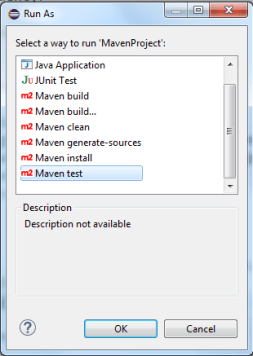
                      <fork>true</fork>
                      <source>1.7</source>
                      <target>1.7</target>
                      <executable>C:\JDK\bin\javac.exe</executable>
             </configuration>
        </plugin>
 
</plugins>
</build>
 
</project>


selenium free course

The test class includes 5 JUNIT test scripts, all of them having the same code:


import static org.junit.Assert.*;import org.junit.After;
import org.junit.Before;
import org.junit.Ignore;
import org.junit.Test;
import org.openqa.selenium.WebDriver;
import org.openqa.selenium.firefox.FirefoxDriver;


public class TestClass1
{


WebDriver driver;
String siteUrl = “http://www.vpl.ca&#8221;;
String keyword = “java”;


@Before
public void setUp()  {
driver = new FirefoxDriver();
}


@After
public void tearDown() {
driver.quit();
}


@Test
public void testFirstResult() throws InterruptedException 
{
HomePage homePage = new HomePage(driver);
ResultsPage resultsPage =
homePage.open(siteUrl).typeKeyword(keyword).executeSearch();
DetailsPage detailsPage = resultsPage.selectResult(1);
assertTrue(detailsPage.visibilityBookTitle() == true);
assertTrue(detailsPage.lengthBookTitle() > 0);
assertTrue(detailsPage.visibilityBookAuthor() == true);
assertTrue(detailsPage.lengthBookAuthor() > 0);
}


@Test
public void testSecondResult() throws InterruptedException
{ ………..}


@Test
public void testThirdResult() throws InterruptedException
{ ………. }@Test
public void testFourthResult() throws InterruptedException
{ ……… }@Test
public void testFifthResult() throws InterruptedException
{ …….. }}The project is executed using the Maven Test command:


The JUNIT test scripts from the test class are executed sequentially.

The execution time is 1.44 minutes.


Run the JUNIT test scripts in parallel

A few changes are needed to the POM.XML file.

We need to add a new plugin for Maven Surefire.

For the Maven Surefire plugin, the following settings are required:

parallel = methods
threadCounts = 5


<modelVersion>4.0.0</modelVersion>
<groupId>com.siminiuc</groupId>
<artifactId>MavenProject</artifactId>
<version>0.0.1</version>
<name>Maven Project</name>
<dependencies>
 
        <dependency>
            <groupId>junit</groupId>
            <artifactId>junit</artifactId>
            <version>4.12</version>
                         <scope>test</scope>
                </dependency>
 
                <dependency>
                       <groupId>org.seleniumhq.selenium</groupId>
                       <artifactId>selenium-firefox-driver</artifactId>
                       <version>2.47.1</version>
                </dependency>
 
</dependencies>
 
<build>
 
<plugins>
 
              <plugin>
                   <groupId>org.apache.maven.plugins</groupId>
                   <artifactId>maven-compiler-plugin</artifactId>
                   <version>2.3.2</version>
                   <configuration>
                           <fork>true</fork>
                           <source>1.7</source>
                           <target>1.7</target>
                           <executable>C:\JDK\bin\javac.exe</executable>
                   </configuration>
            </plugin>
 
           <plugin>
                  <groupId>org.apache.maven.plugins</groupId>
                  <artifactId>maven-surefire-plugin</artifactId>
                  <version>2.19</version>
                  <configuration>
                        <parallel>methods</parallel>
                        <ThreadCount>5</threadCount>
                  </configuration>
           </plugin>
 
</plugins>
</build>
 
</project>
 

Running the project again shows the JUNIT scripts running in parallel.


The execution time is 41 seconds.


The execution time was reduced with 60% through by running the scripts in parallel.


selenium free course

If you have any questions about this article, please leave them in the Comments section.

Create WebDriver HTML Reports With The Allure Framework

cats and html reports


Allure framework can help with generating HTML reports for your Selenium WebDriver projects.

The reporting framework is very flexible and it works with many programming languages and unit testing frameworks.

You can read everything about it at http://allure.qatools.ru/.

JUNIT does not provide any HTML reports by default

If you use JUNIT for running your test automation scripts,everything that you get is a visual report of the test results.

This visual report is GREEN if all the test scripts pass and RED if at least one test script fails.


For each test script, the execution status (pass/fail) is displayed, together with the execution time and details of the error.

The problems with this visual report are that

  • it cannot be saved
  • the amount of information that it includes is very limited
  • it is not possible to see over time how the test scripts run

The Allure framework has solutions for all these problems

The reports that can be generated using Allure are very impressive.
You can get
– an overview report for multiple test suites


– detailed report for a test suite


– graphical reports


See more report templates on this link:
http://ci.qatools.ru/job/allure-core_master-deploy/lastSuccessfulBuild/Allure_report/

How can you get these great reports for your WebDriver test scripts?

It is quite easy to add the Allure framework to your WebDriver project.


this is relevant


1. Create a Maven project in Eclipse

After creating the Maven project, the project structure will be as follows:


2. Add the class files to the proper folders


The page object classes should be in the Src/Main/Java folder.

The test script classes should go to the Test/Java folder.


3. Configure the POM xml file


The POM file is very straightforward:

<project xmlns=”http://maven.apache.org/POM/4.0.0&#8243; xmlns:xsi=”http://www.w3.org/2001/XMLSchema-instance&#8221; xsi:schemaLocation=”http://maven.apache.org/POM/4.0.0 http://maven.apache.org/xsd/maven-4.0.0.xsd”&gt;

<modelVersion>4.0.0</modelVersion>

<groupId>com.siminiuc</groupId>

<artifactId>MavenProject</artifactId>

<version>0.0.1</version>

<name>Maven Project</name>

<url>http://maven.apache.org</url&gt;

<dependencies>

     <dependency>

              <groupId>junit</groupId>

              <artifactId>junit</artifactId>

              <version>4.12</version>

              <scope>test</scope>

      </dependency>

     <dependency>

              <groupId>org.seleniumhq.selenium</groupId>

             <artifactId>selenium-firefox-driver</artifactId>

             <version>2.47.1</version>

     </dependency>    

 </dependencies>  

 <build>

      <plugins>

           <plugin>

               <groupId>org.apache.maven.plugins</groupId>

              <artifactId>maven-compiler-plugin</artifactId>

              <version>2.3.2</version>

              <configuration>

                     <fork>true</fork>

                     <source>1.7</source>

                     <target>1.7</target>

                     <executable>C:\JDK\bin\javac.exe</executable>

            </configuration>

        </plugin>           

    </plugins>

</build>

</project>


It includes dependencies for JUNIT and Selenium Firefox driver and a plugin for the maven compiler.


selenium free course

4. Run the test scripts


Run the test scripts using maven test:


The execution results are displayed in the console tab:


5. Add Allure framework details to the POM file


The POM file changes a bit after adding the Allure details.

I have highlighted with italic all changes:

<project xmlns=”http://maven.apache.org/POM/4.0.0&#8243; xmlns:xsi=”http://www.w3.org/2001/XMLSchema-instance&#8221; xsi:schemaLocation=”http://maven.apache.org/POM/4.0.0 http://maven.apache.org/xsd/maven-4.0.0.xsd”&gt;

 <modelVersion>4.0.0</modelVersion>

 <groupId>com.siminiuc</groupId>

 <artifactId>MavenProject</artifactId>

 <version>0.0.1</version>

 <name>Maven Project</name>

 <url>http://maven.apache.org</url&gt;

 <properties>

         <aspectj.version>1.8.5</aspectj.version>

         <allure.version>1.4.11</allure.version>

 </properties>

 <dependencies>

        <dependency>

                 <groupId>junit</groupId>

                 <artifactId>junit</artifactId>

                 <version>4.12</version>

                 <scope>test</scope>

         </dependency>

         <dependency>

               <groupId>org.seleniumhq.selenium</groupId>

              <artifactId>selenium-firefox-driver</artifactId>

              <version>2.47.1</version>

        </dependency>

         <dependency>

               <groupId>ru.yandex.qatools.allure</groupId>

               <artifactId>allure-junit-adaptor</artifactId>

              <version>${allure.version}</version>

        </dependency>

</dependencies>  


cat awake

<build>

      <plugins>

                   <plugin>

                          <groupId>org.apache.maven.plugins</groupId>

                          <artifactId>maven-compiler-plugin</artifactId>

                          <version>2.3.2</version>

                         <configuration>

                                 <fork>true</fork>

                                 <source>1.7</source>

                                 <target>1.7</target>

                                 <executable>C:\JDK\bin\javac.exe</executable>

                       </configuration>

               </plugin>

              <plugin>

                           <groupId>org.apache.maven.plugins</groupId>

                          <artifactId>maven-surefire-plugin</artifactId>

                         <version>2.14</version>

                        <configuration>

                                  <testFailureIgnore>false</testFailureIgnore>

                                  <argLine>

                                       –                   javaagent:${settings.localRepository}/org/aspectj/aspectjweaver/${aspectj.version}/aspectjweaver-${aspectj.version}.jar

                                 </argLine>

                                <properties>

                                     <property>

                                          <name>listener</name>                                         

                                          <value>

                                                      ru.yandex.qatools.allure.junit.AllureRunListener

                                          </value>

                                   </property>

                               </properties>

                     </configuration>
                      <dependencies>

                             <dependency>

                                      <groupId>org.aspectj</groupId>

                                     <artifactId>aspectjweaver</artifactId>

                                     <version>${aspectj.version}</version>

                            </dependency>

                    </dependencies>

        </plugin>

        <plugin>

               <groupId>org.eclipse.jetty</groupId>

               <artifactId>jetty-maven-plugin</artifactId>

               <version>9.2.10.v20150310</version>

               <configuration>

                       <webAppSourceDirectory>

                           ${project.build.directory}/site/allure-maven-plugin

                      </webAppSourceDirectory>

                      <stopKey>stop</stopKey>

                      <stopPort>1234</stopPort>

            </configuration>

     </plugin>

  </plugins>

</build>

<reporting>

                <excludeDefaults>true</excludeDefaults>

                <plugins>

                      <plugin>

                              <groupId>ru.yandex.qatools.allure</groupId>

                              <artifactId>allure-maven-plugin</artifactId>

                              <version>2.0</version>

                      </plugin>

             </plugins>

</reporting>

</project>


selenium free course

6. Run the test scripts in Command Prompt


7. Generate the report by running mvn site in the Command Prompt


The Allure report can be found on the following location:
C:\Users\home\workspace\AllureProject\target\site\allure-maven-plugin


The report can be displayed in the browser by double-clicking the index.html file:


selenium free course

WebDriver emulates user actions on a page.

When the automation script is executed, the following steps happen:

  • for each Selenium command, a HTTP request is created and sent to the browser driver
  • the browser driver uses a HTTP server for getting the HTTP requests
  • the HTTP server determines the steps needed for implementing the Selenium command 
  • the implementation steps are executed on the browser
  • the execution status is sent back to the HTTP server
  • the HTTP server sends the status back to the automation script


Selenium Client & WebDriver Language Bindings


Multiple languages are available for writing test automation scripts using the Selenium WebDriver framework.

The most popular are Java, Ruby, C# and Python.

Test automation scripts use Selenium commands for interacting with the elements of a site:


package org.openqa.selenium.example;

import org.openqa.selenium.By;
import org.openqa.selenium.WebDriver;
import org.openqa.selenium.WebElement;
import org.openqa.selenium.firefox.FirefoxDriver;
import org.openqa.selenium.support.ui.ExpectedCondition;
import org.openqa.selenium.support.ui.WebDriverWait;

public class Selenium2Example {
public static void main(String[] args) {
// Create a new instance of the Firefox driver
// Notice that the remainder of the code relies on the interface,
// not the implementation.
WebDriver driver = new FirefoxDriver();

// And now use this to visit Google
driver.get(http://www.google.com&#8221;);
// Alternatively the same thing can be done like this
// driver.navigate().to(“http://www.google.com&#8221;);

// Find the text input element by its name
WebElement element = driver.findElement(By.name(“q”));

// Enter something to search for
element.sendKeys(“Cheese!”);

// Now submit the form. WebDriver will find the form for us from the element
element.submit();

// Check the title of the page
System.out.println(“Page title is: “ + driver.getTitle());

// Google’s search is rendered dynamically with JavaScript.
// Wait for the page to load, timeout after 10 seconds
(new WebDriverWait(driver, 10)).until(new ExpectedCondition<Boolean>() {
public Boolean apply(WebDriver d) {
return d.getTitle().toLowerCase().startsWith(“cheese!”);
}
});

// Should see: “cheese! – Google Search”
System.out.println(“Page title is: “ + driver.getTitle());

//Close the browser
driver.quit();
}
}


selenium free course


The browser driver implements Selenium commands that emulate all types of actions that users execute typically on a website:

  1. open a web page
  2. maximize the browser
  3. navigate through the browser history
  4. click buttons and links
  5. select values in lists and dropdown lists
  6. type text in textboxes
  7. get status of web elements
  8. get information of web elements (value, attributes, position)

The browser driver is the same regardless of the language used for automation.

So, in order to use the browser driver from any language, a language binding was created for each language so that

  • If you want to use the browser driver in Java, use the Java bindings for Selenium WebDriver
  • If you want to use the driver in C#, Ruby or Python, use the binding for that language

All language bindings are available for download on the Selenium HQ site on the Selenium WebDriver & Client Language Bindings section.

For Java, the bindings are included in the selenium-java-2.47.1.zip file:

selenium-java-2.47.1.jar (Java bindings)
selenium-java-2.47.1-srcs.jar


HTTP request is created for each Selenium command


For each Selenium command of the automation script, a http request with a specific path is created.


When the automation script is executed, the first http request generates a new session that is specific to the browser where the automation scripts run.

The session id will be used for the http requests that correspond to all other Selenium commands from the automation script.

The details of the Create New Session http request are below:

POST /session

Create a new session. The server should attempt to create a session that most closely matches the desired and required capabilities. Required capabilities have higher priority than desired capabilities and must be set for the session to be created.
JSON Parameters:
desiredCapabilities – {object} An object describing the session’s desired capabilities.
requiredCapabilities – {object} An object describing the session’s required capabilities (Optional).
Returns:
{object} An object describing the session’s capabilities.
Potential Errors:
SessionNotCreatedException – If a required capability could not be set.


1. HTTP REQUEST TYPES

HTTP requests are GET or POST requests

  • GET requests

    Get requests are generated usually for Selenium interrogation commands (commands that get information from web elements) such as

    • getText()
    • getAttribute()
    • isDisplayed()
    • isSelected()


EXAMPLEhttp request for checking if an element is displayed:

URL
GET /session/:sessionId/element/:id/displayed

Purpose
Determine if an element is currently displayed.

URL Parameters
:sessionId – ID of the session to route the command to.
:id – ID of the element to route the command to.

Returns
{boolean} Whether the element is displayed.


  • POST requests 

    Post requests are generated usually for Selenium manipulation commands (commands that interact with web elements) such as

    • get()
    • findElement()
    • findElements()
    • click()

EXAMPLE: http request for clicking an element:

URL
POST /session/:sessionId/element/:id/click

Purpose
Click on an element.

URL Parameters
:sessionId – ID of the session to route the command to.
:id – ID of the element to route the command to.

The communication between the client (computer that runs the test automation scripts) and the browser driver uses the HTTP and JSON wire protocol.


selenium free course

2. HTTP REQUEST PARAMETERS

The HTTP requests use the following types of parameters:

  • URL parameters

EXAMPLE: http request for clicking an element

URL
POST /session/:sessionId/element/:id/click

URL Parameters
:sessionId – ID of the session to route the command to.
:id – ID of the element to route the command to.

  • JSON parameters

EXAMPLE: http request for finding an element

URL
POST /session/:sessionId/element

URL Parameters
:sessionId – ID of the session to route the command to.

JSON Parameters
using – {string} The locator strategy to use.
value – {string} The The search target.


3. HTTP REQUEST RESULT

The result of a HTTP request can be:
  • a value

EXAMPLE: http request for getting the title of the current page

URL
GET /session/:sessionId/title

URL Parameters
:sessionId – ID of the session to route the command to.

Returns
{string} The current page title.

  • a JSON object

EXAMPLE: http request for finding an element

URL
POST /session/:sessionId/element

URL Parameters
:sessionId – ID of the session to route the command to.

JSON Parameters
using – {string} The locator strategy to use.
value – {string} The The search target.

Returns
{ELEMENT:string} A WebElement JSON object for the located element.


Browser Driver


The browser driver is implemented in a EXE file or a browser extension:

  • CHROME browser
    1. the browser driver is included in the chromedriver.exe file
    2. download it from here
  • INTERNET EXPLORER browser
    1. the browser driver is included in the internetexplorer.exe file
    2. download it from the Internet Explorer Driver Server section of the Selenium Downloads page
  • FIREFOX browser
    1. the browser driver is a firefox extension included in the Selenium Client & WebDriver Language binding file


The browser driver uses an HTTP SERVER which waits continuously for new Selenium commands.

It has the following purposes:

  • read HTTP requests coming from the client (client = computer that executes the test automation scripts)
  • determines the series of steps needed for implementing the Selenium command
  • sends the implementation steps to the browser
  • gets the execution status from the browser
  • send the execution status back to the client

For example, see below the implementation steps for the http request that corresponds to the getTitle() Selenium WebDriver command:

GET /session/{session id}/title

The Get Title command returns the document title of the current top-level browsing context, equivalent to calling window.top.document.title.

The remote end steps are:

  1. If the current top-level browsing context is no longer open, return error with error code no such window.
  2. Handle any user prompts and return its value if it is an error.
  3. Let title be the value of the current top-level browsing context’s active document’s title.
  4. Let data be a new JSON Object.
  5. Set the property “value” of data to the value of title.
  6. Return success with data data.


selenium free course

So, the process of executing the test scripts consists in


1. write the code in the programming language

2. use the language binding for including Selenium commands in the test scripts

3. the test automation script execution is started

4. the browser driver is created

5. the HTTP server starts listening for Selenium commands HTTP requests

6. for each Selenium command from the test script, a HTTP request is created

7. the HTTP request is sent to the HTTP server

8. the HTTP server determines the steps needed for implementing the Selenium command

9. the implementation steps are sent to the browser 

10. as soon as the execution status is returned from the browser, the HTTP server send the execution status back to the test script